
Transect helps you find and assess sites for renewable energy and other large infrastructure Projects. Pick where to start based on your starting point:
- Already have a site in mind? Run a Report to assess it.
- Looking for a site? Use search criteria and filters to find candidate parcels, then assess the best ones.
Run a Report on a Site
If you have a site to evaluate, run a Transect Report to identify environmental, regulatory, and infrastructure risks within the area.
Need help setting up your report? See our guides to choosing a Project Type and Sub-Type and answering Report Context Questions.
- From the Dashboard, select Order Report.
- Define your Project boundaries using one of these options:
 : Upload a KML/KMZ of your Project site, or bulk upload coordinates from CSV to create multiple Projects at once.
 : Drop a pin to evaluate a Project area around a point, or select an entire parcel’s boundary. You’ll select the radius around the pin in the next step.
 : Draw a polygon on the Map.
 : Draw a line on the Map to create a linear Report.
 : Select one or more parcels with Quick Parcel Select to create your Project boundary.
- After defining a boundary, select Next.
- On the following page, you'll have the option to provide the following information:
- Assign Tags: Assign a specific Tag to your Projects to quickly categorize them.
- Pin Radius (for pin Projects only): Select a range (10ft-5280ft) around your droPed pin to create your Project area.
- Project Name: Click the pencil next to the Project to rename it.

- When finished, select Next.
- Add your Project details to the relevant fields on the next page. You’ll also add a Report buffer to evaluate constraints up to 1 mile outside of your area of interest.
- When finished, click Order Report.
Once your Report is ready, see Assessing Sites in Reports to interpret your findings and decide on next steps.
Find a Site
Don't have a site yet? Start on the Map.
- Open the Map from the top of any page.
- Turn on layers to spot risks like Wetlands, Waterways, Pulse, Slope, and more. To learn which layers we recommend reviewing, see Assessing Sites in the Map.
- To narrow down to parcels that fit your Project, see Finding Sites.
When you've found a promising site, run a Report on it (see Run a Report on a Site above).
Track Your Portfolio on the Dashboard
Once you've run Reports, the Dashboard gives you a centralized view of your Projects, so you can quickly see where to focus your attention. You can select Edit Columns to modify your view, but you’ll see the following fields by default:
- Concern Levels: Color-coded ratings for species, waters, environmental compliance, and protected areas to spot potential risk before diving into a report.

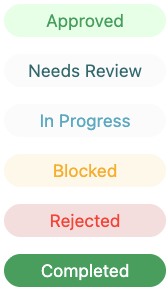
- Project Status: Track each site’s review status across your pipeline.
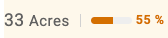
- Buildability: See how much of each Project is buildable, in acres and percent.
- Folders: Group Projects into folders by region, client, or portfolio to keep your pipeline organized.

- Tags: Filter and sort Projects by the Tags you’ve assigned.

Next Steps & Support
What's Next?
This guide is part of a four-part series on finding and assessing sites in Transect. Continue to the next guide, or jump to any step as your Project moves forward:
Need More Support?
- Support team: Questions about the platform? Use the in-app chat or email support@transect.com
- Environmental Team: Questions about environmental constraints or permitting considerations for your project? Schedule a consultation with our Regional Environmental Specialists.