
Whatever you’re developing, Transect’s Parcel Filter and Smart Sites help you quickly find sites that match your project’s requirements.
Find a Project Area with the Parcel Filter
The Parcel Filter narrows down large areas to parcels that match the criteria you choose. This is useful for finding viable sites in a relatively small area, like a city or small county.
You can filter by:- Boundary: Search within a KML, radius of a dropped pin, or polygon, or along distribution or fiber lines.
- Proximity: Find parcels within a specified distance of transmission lines or substations.
- Size: Set a minimum or maximum acreage.
- Owner: Include or exclude parcels by owner name, parcel number, or other criteria.
- Buildable Area: Filter out parcels that don’t meet your minimum buildable acreage or percentage.
- More: Filter by zoning, energy communities, and other criteria.
When you've found a promising area, click Save Search so you can easily return to it later. Once the search is saved, you can select Save Project to lock in the boundary.
Find a Project Area with Smart Sites
Smart Sites finds groups of adjacent parcels that meet your acreage and site criteria across an entire county or state. This is useful for large projects in areas where single parcels rarely have enough acreage on their own to support a project of your desired size. You can sort the results by size, distance to grid infrastructure, buildable area, and more.
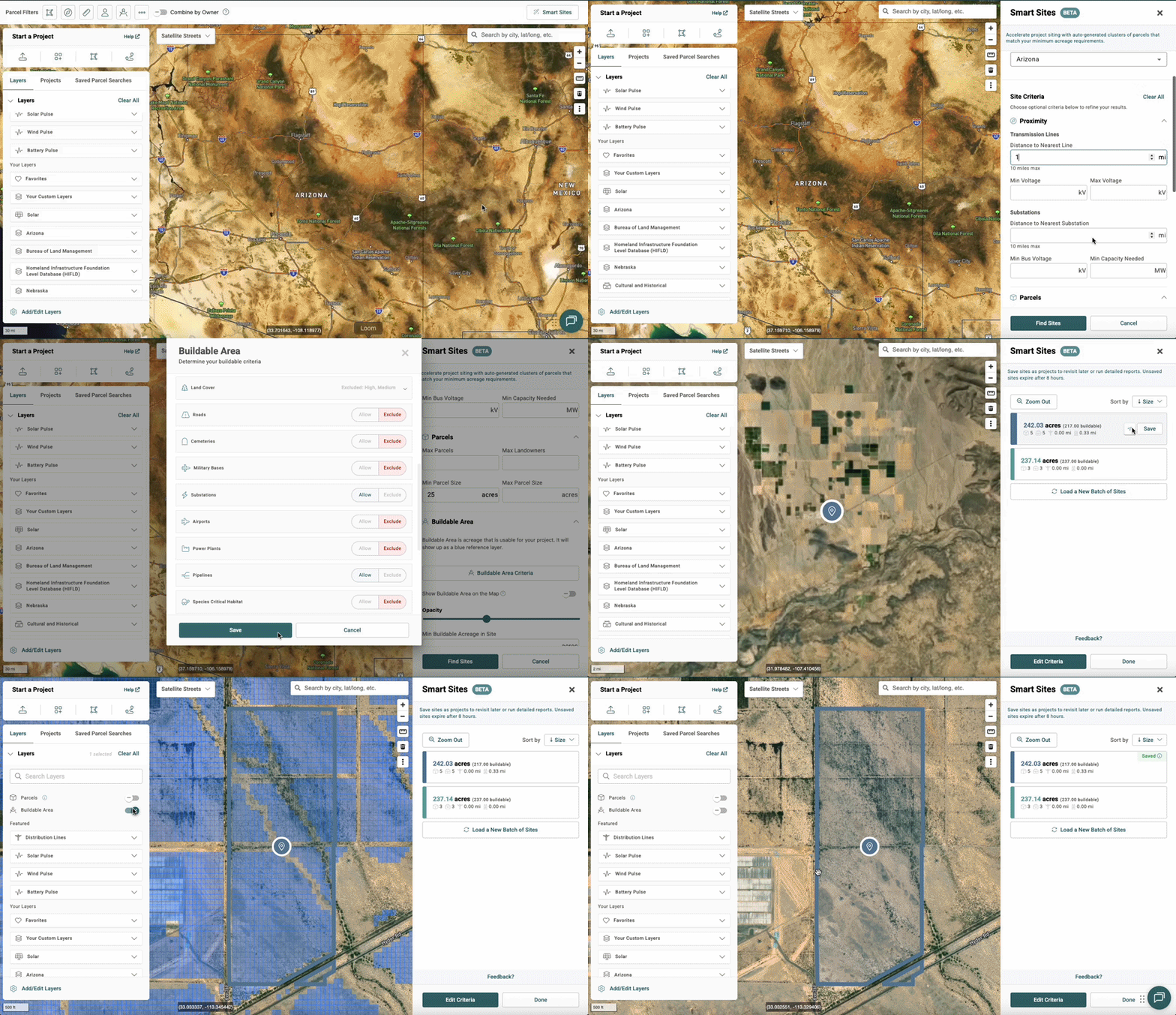
When you find a location you want to look at more closely, click Save to lock in the area as a Project.
Track Landowner Outreach with Site Control
Once you've found promising parcels, you can use Site Control Tracking to track land acquisition in one place: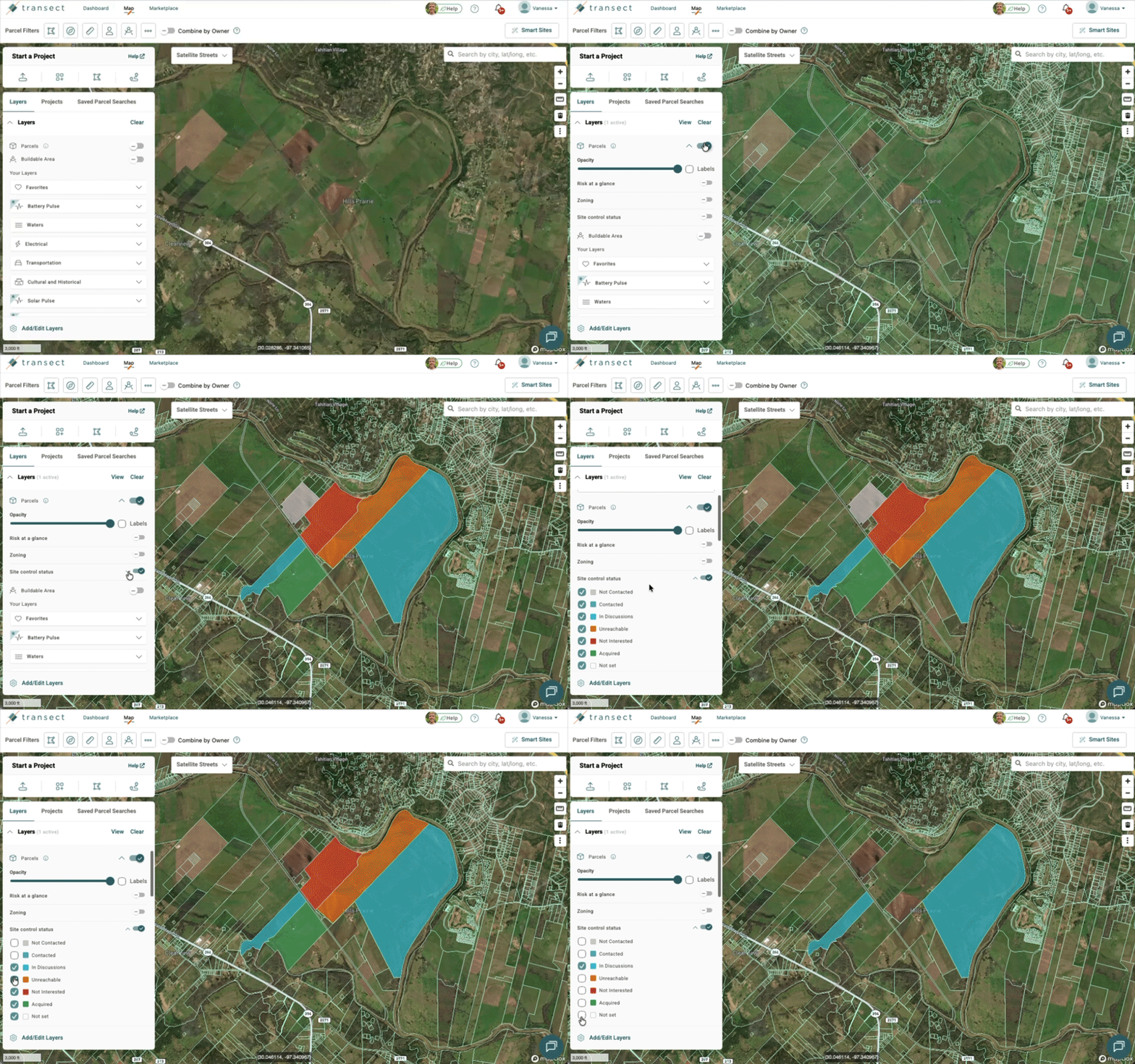
- Toggle on the Parcels layer and click the dropdown arrow to view nested layers.
- Enable the Site Control Status layer to view your parcels color-coded by outreach status, such as Contacted, In Discussions, or Acquired.
- Click any parcel to view or edit the star rating, contract type, and notes. These fields can be changed by anyone in your organization.
Comparing the Parcel Filter and Smart Sites
| Parcel Filter | Smart Sites | |
| What it does | Lets you filter and search for individual parcels that match your criteria | Automatically finds clusters of adjacent parcels that meet your acreage target |
| Best for | Single-parcel searches and projects that don't need connected land | Large projects that need connected land (e.g., utility-scale solar, data centers, nuclear) |
| Results | Individual parcels that match your filters—you can also combine adjacent parcels | Combinations of adjacent parcels that match your filters |
| Search area | KML upload, map point, drawn polygon or line, feature selection, or distance from distribution/fiber lines | City, county, or state |
| Filters | Proximity, size, owner, buildable area, zoning, energy communities, protected areas, cleanup sites, tribal lands, low-income communities | Minimum/maximum site size, individual parcel acreage, location, distance to transmission lines and substations, voltage, capacity, parcel count, ownership, buildable area |
Create a Project from the Map
When you find a site you want to evaluate, save it as a Project. A Project keeps your site boundary in the Map until you’re ready to order a Transect Report.
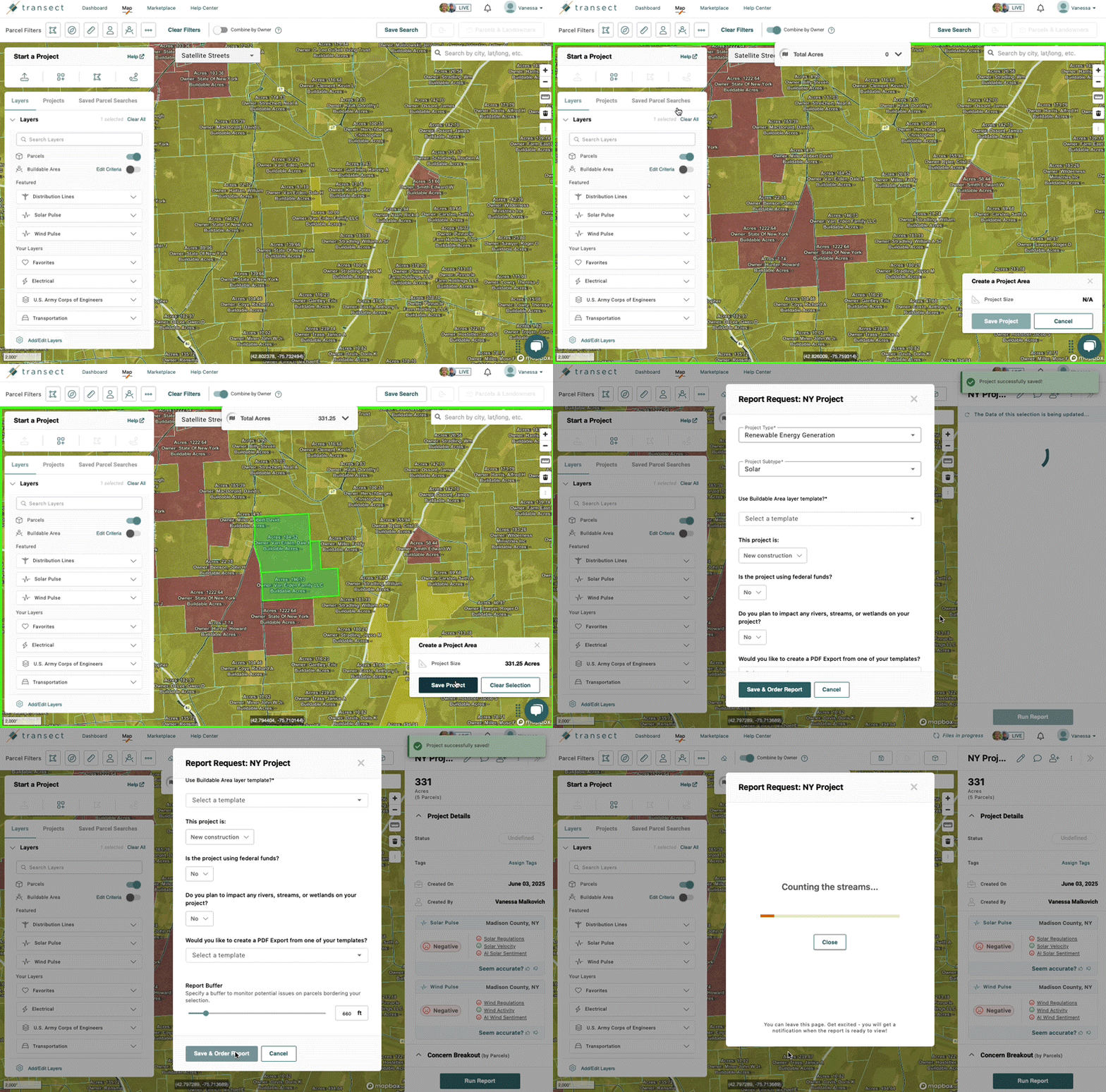
- To create a Project, set your project boundary using one of these options:
 : Upload a KML/KMZ of your project site.
 : Draw a polygon.
 : Draw a line to create a linear Report.
 : Select one or more parcels with Quick Parcel Select to create your Project boundary.
- Select Save Project, then enter a Project name.
- Select Save to save it as a Project, or select Save & Order Report to start generating a Report.
- If you choose Save, your boundary is saved in the Map under the Projects tab.
- If you selected Save & Order Report, enter your Project details, including the Project Type and Sub-Type. (See our guides to choosing a Project Type and Sub-Type and answering Report Context Questions.)
- Select Save & Order Report again. Your Report generates in the background, and you’ll get an in-app notification and an email when it’s ready.
Once your report is ready, continue to Assessing Sites in Reports to learn how to review your findings.
Next Steps & Support
What's Next?
This guide is part of a four-part series on finding and assessing sites in Transect. Continue to the next guide, or jump to any step as your Project moves forward:
Need More Support?
- Support team: Questions about the platform? Use the in-app chat or email support@transect.com
- Environmental Team: Questions about environmental constraints or permitting considerations for your project? Schedule a consultation with our Regional Environmental Specialists.