
Site Control Tracking allows you to track the progress of your land acquisition efforts in one place. Keep your team informed with a visualization of every parcel you've assigned a Status, right inside Transect.
In this article, we'll review how to:
- View Parcels by Site Control Status
- Add Site Control Details to a Parcel
- Use Site Control Tracking in the Parcels & Landowners Table
- Track What's Changed
- Manage Statuses
- Export Site Control Details
Viewing Parcels by Site Control Status
You can find Site Control Tracking in the Parcels layer within the Map. To turn it on:
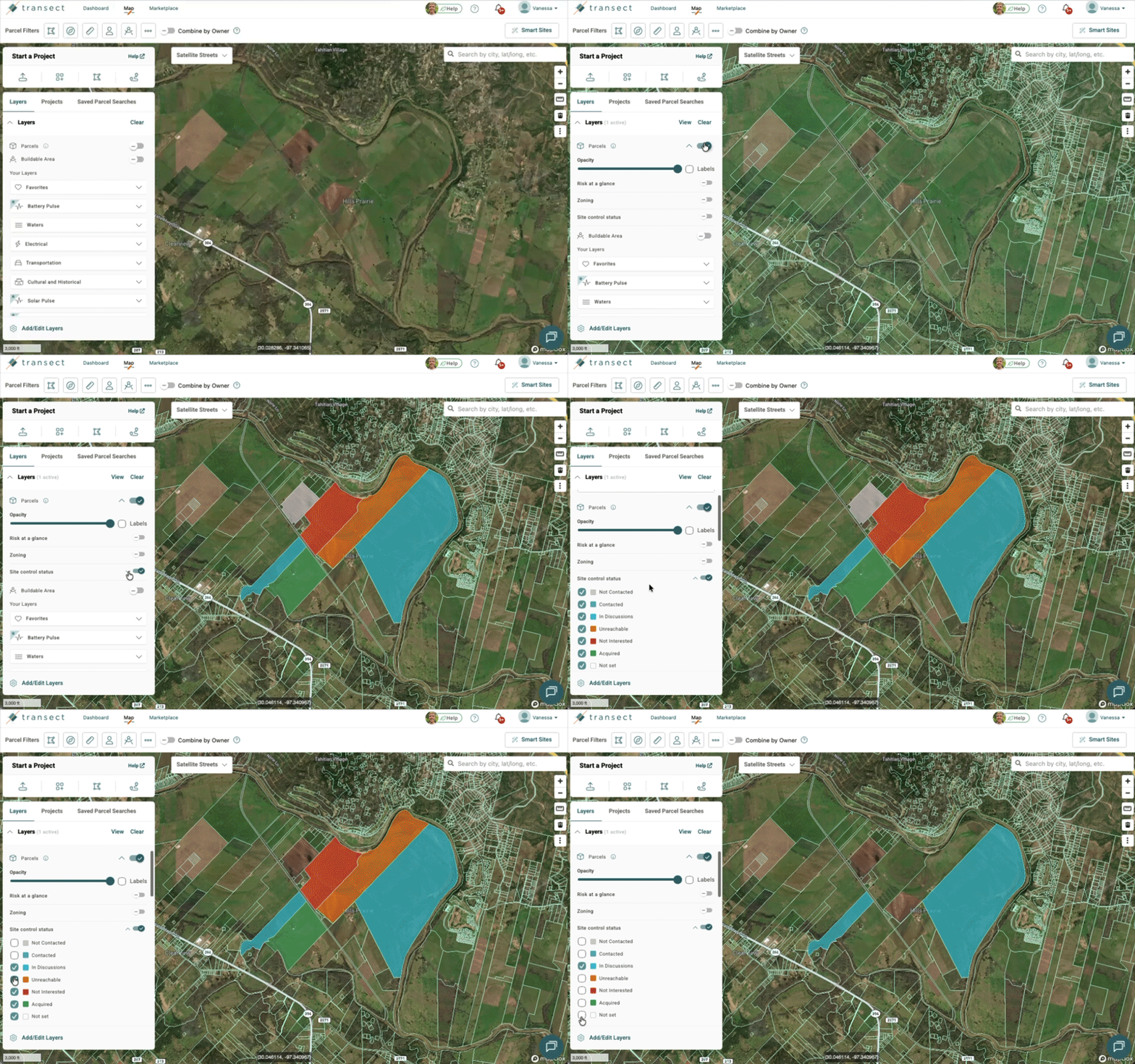
- In the Layers panel, activate the Parcels layer.
-
Select the dropdown arrow next to Parcels to see more parcel layers.
- Toggle to enable the Site Control Status layer. Parcels with a status will be color-coded on the Map.
- To filter your view, select the dropdown arrow next to “Site Control Status” to open the legend. Then check or uncheck the statuses you want to show on the Map.
Note: Parcel Statuses, Star Ratings, and Notes are visible to everyone in your organization. They also carry over to every Project the parcel is associated with.
Adding Site Control Details to a Parcel
With the Parcels layer activated, click a parcel to populate the Parcel Details panel. From there, you can add: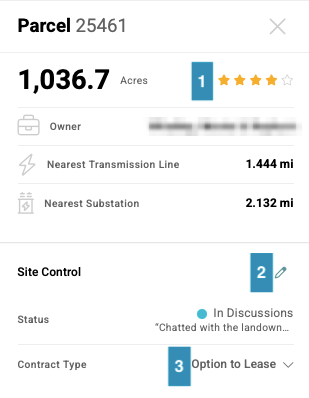
- Star Rating (1-5 stars): A subjective rating of the parcel's overall quality or viability, based on criteria your organization defines.
- Site Control Status: Indicates the current status of the parcel with regards to Site Control Tracking. To get you started, we pre-loaded a few common statuses—Not Contacted, Contacted, In Discussions, Unreachable, Not Interested, Acquired, or Not Set (default). Admins can easily edit these or create custom ones to match your workflow.
- Contract Type: The type of real estate agreement you’re currently pursuing with the landowner. Options are: Option to Lease, Lease, Purchase, Lease or Purchase, or Easement.
To add or edit a parcel’s Status:
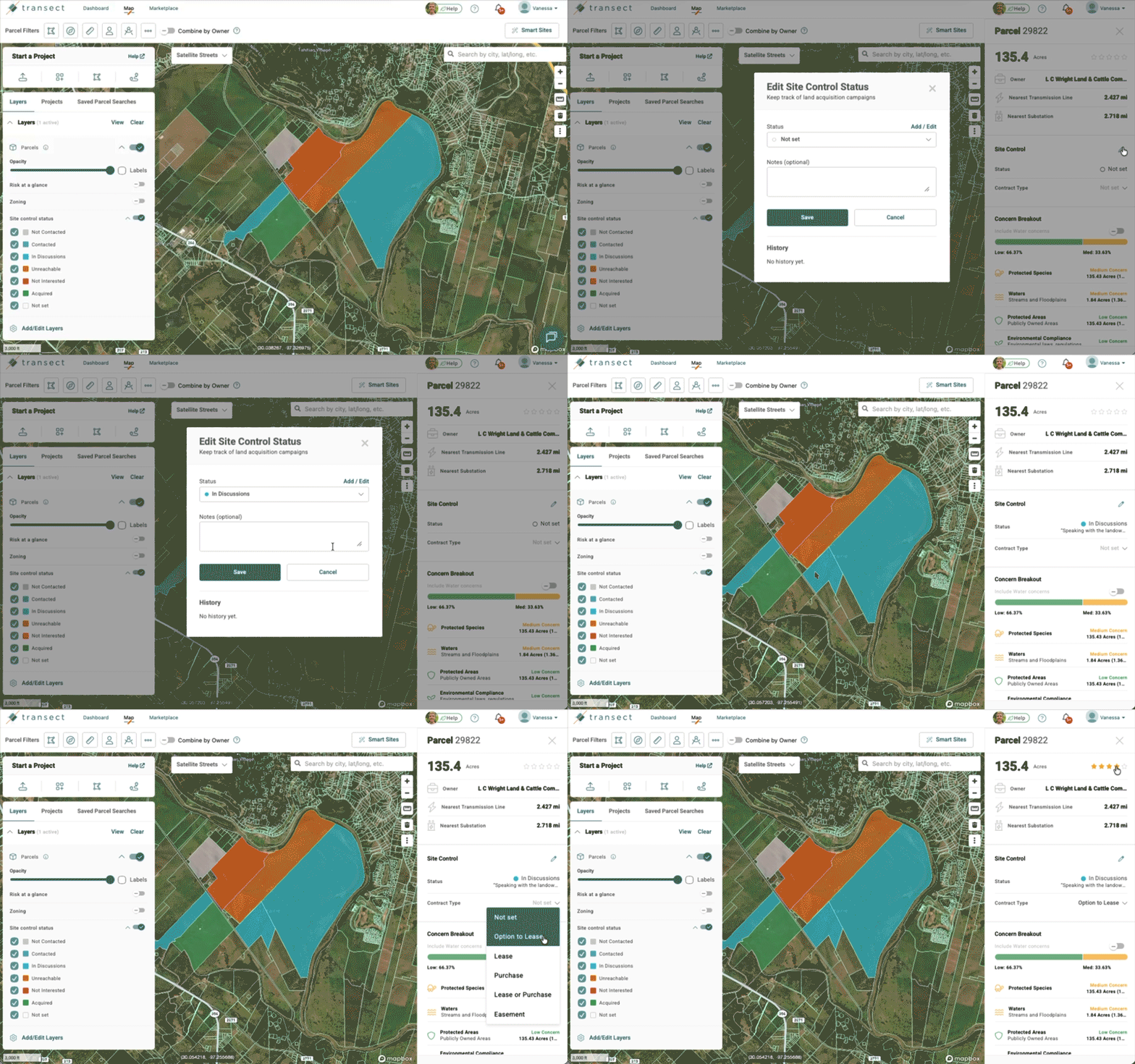
- Click the pencil next to “Site Control.”
- Change the “Status” dropdown to a new or different value.
- Optionally, add Notes to describe your interaction with the landowner.
- When finished, select Save.
Using Site Control Tracking in the Parcels & Landowners Table
Projects and Saved Parcel Searches
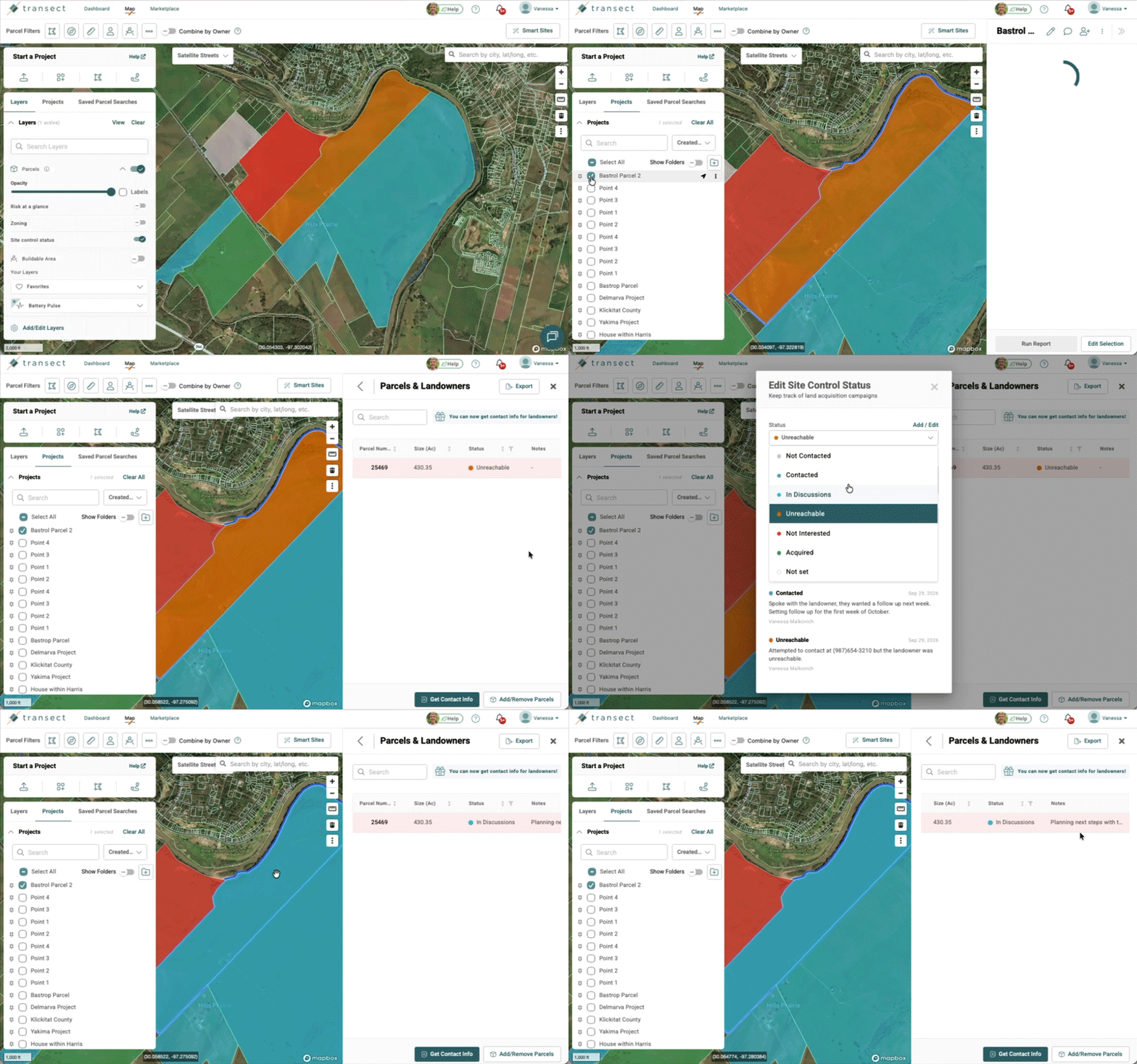
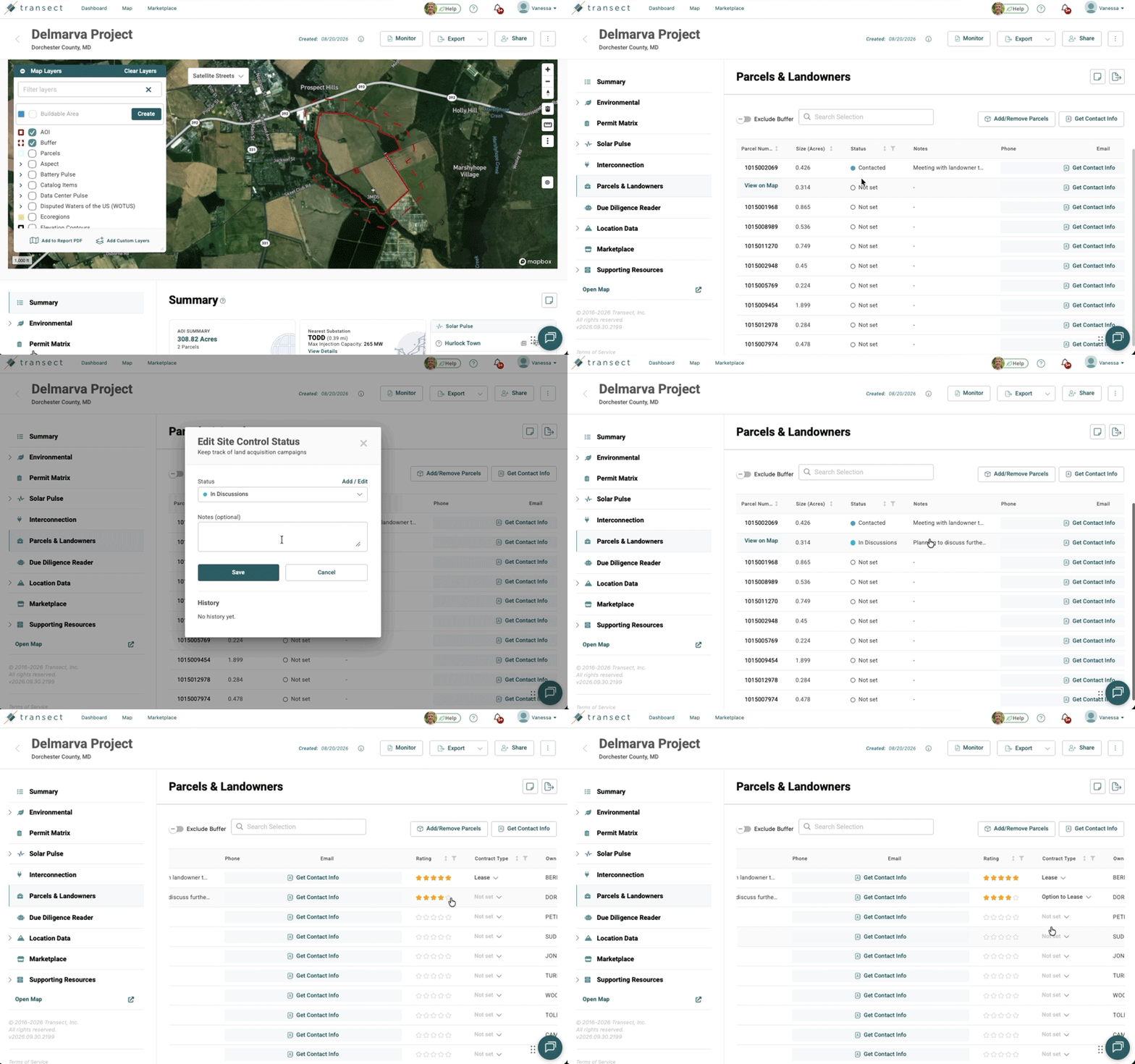
- Open a Project or a Saved Parcel Search from the Dashboard or within the Map.
- In the Parcel Details panel, scroll down to the “Parcels” section and select View/Edit Parcels or View Parcels/Landowners.
- Click the Status or Notes columns to edit the values.
- Select the “Status” dropdown to update it to a new or different value.
- Optionally, add Notes to describe your interaction with the landowner.
-
When finished, select Save.
Reports
-
Open a Report from the Dashboard.
-
Select Parcels & Landowners from the left-side menu.
-
Click the Status or Notes columns to edit the values.
- Select the “Status” dropdown to update it to a new or different value.
- Optionally, add Notes to describe your interaction with the landowner.
- Your changes are automatically saved.
Tracking What’s Changed
Each Status change and new Note is saved in the History section with the user's name and date.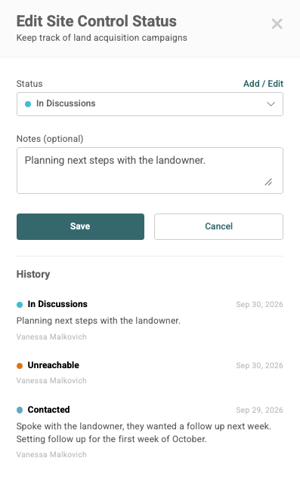
Note: Changes to Contract Type and Star Ratings are not tracked in History.
Managing Statuses
Admins can customize the Site Control Statuses and colors available to their organization. To get started, select any parcel. Click the pencil next to Site Control, then select Add/Edit in the Edit Site Control Status window. 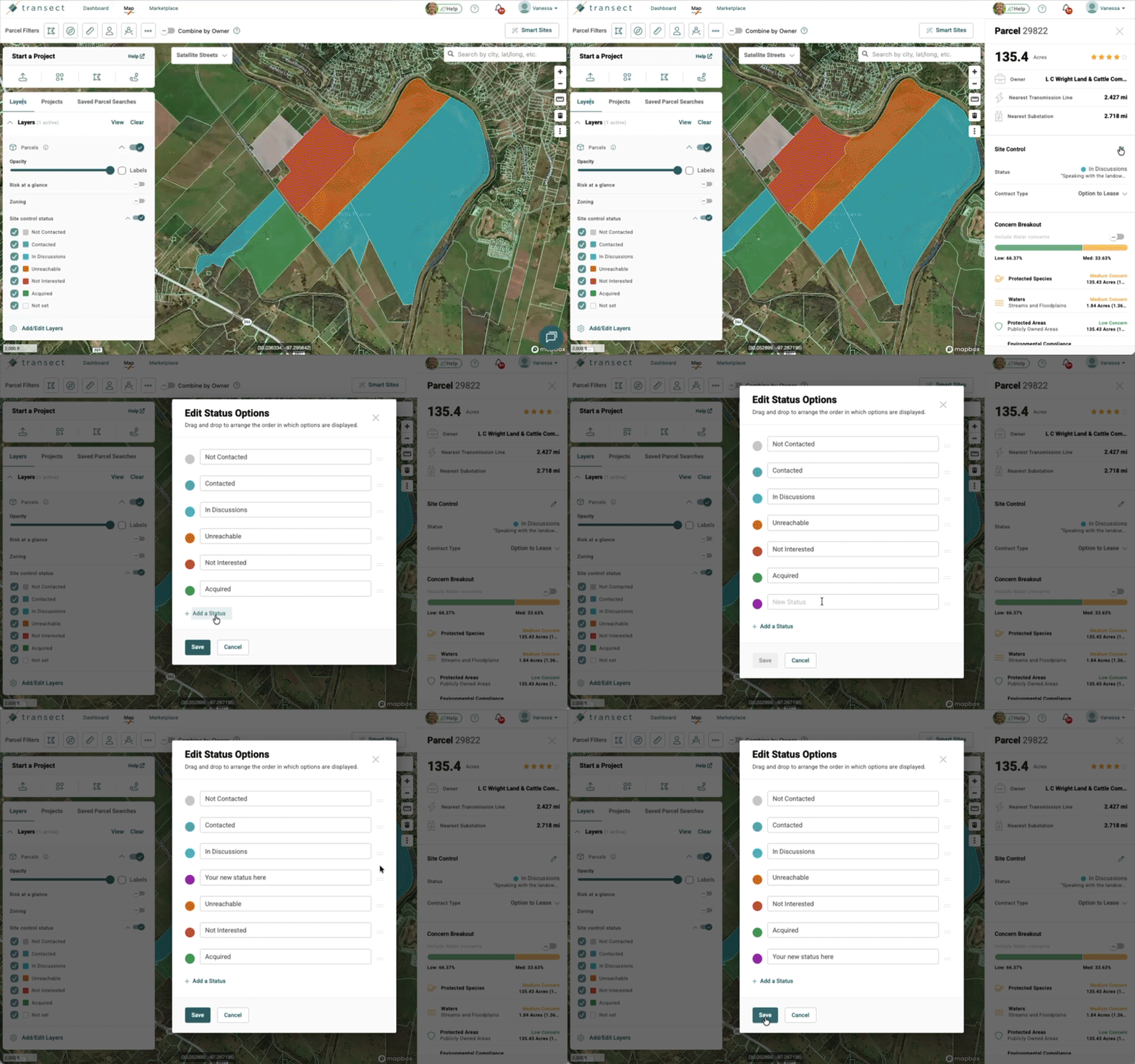
- Add a status: Click + Add a Status, enter a name, and choose a color.
- Change a color: Click the color picker next to a status and choose a new color.
- Rename a status: Click into a status name and edit the text.
- Reorder statuses: Select the
 next to a status to drag it up or down the list.
When you're finished, click Save.
Note: Statuses can be edited, but not deleted.
Exporting Site Control Details
You can export Site Control details from any Project, saved parcel search, or report. Exports can include each parcel's Status, Star Rating, Contract Type, and Notes, along with core parcel data and landowner contact info. This makes it easy to share progress with your team or external land agents.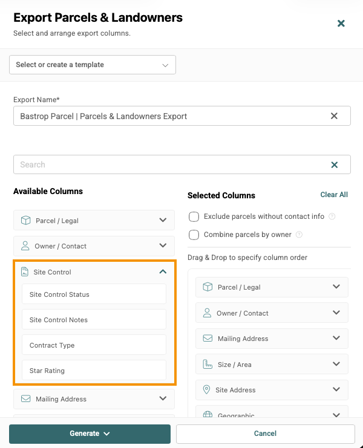
From a Project
- Open the Project from the Dashboard or the Map.
- In the Project Details panel on the right, scroll to the parcels table and select View/Edit Parcels.
- Select Export.
- Drag and drop the Site Control category to include it in your export.
- Optionally, select the dropdown to choose which Site Control fields you’d like to include—Site Control Status, Site Control Notes, Contract Type, or Star Rating.
- When finished, click Generate.
From a Saved Parcel Search
- Open the Saved Parcel Search from the Dashboard or the Map.
- In the Your Site Selection panel on the right, scroll to the parcels table and select View Parcels/Landowners.
- Select Export.
- Drag and drop the Site Control category to include it in your export.
- Optionally, select the dropdown to choose which Site Control fields you’d like to include—Site Control Status, Site Control Notes, Contract Type, or Star Rating.
- When finished, click Generate.
From a Report
- Open the Report from the Dashboard.
- Select Export in the upper right corner, then Parcels & Landowners.
- Alternatively, select Parcels & Landowners from the left-side menu, then click the Export icon from that page.
- Drag and drop the Site Control category to include it in your export.
- Optionally, select the dropdown to choose which Site Control fields you’d like to include—Site Control Status, Site Control Notes, Contract Type, or Star Rating.
- When finished, click Generate.
Click here to learn more about Parcels & Landowners exports.
FAQs
Who can see and edit Site Control details?
Anyone in your organization can see and edit Site Control details. Statuses, Star Ratings, and Contract Types can be changed at any time.
Can I edit a Note after it's been saved?
No, you can't edit a saved Note, but you can always add a new one with the latest information. Earlier Notes stay in the parcel's History section, so your team can see how things have changed over time.
Are Site Control fields shared across all Projects, or set per Project?
Site Control Tracking fields are updated at the parcel level. If the associated parcel exists in multiple Projects, you’ll see the same details in all places, including after running a report.
Can I update multiple parcels at once?
Bulk edits are not yet offered in the current version of Site Control Tracking. For the quickest way to update several parcels, use the Parcels & Landowners table. See Using Site Control Tracking in the Parcels & Landowners Table above.