
Organization Admins can upload custom data layers to their Transect account to provide additional visualizations within reports and the map. These layers can be uploaded in the Map, Reports, and the Admin Panel.
In this article, we'll review:
- Compatibility Requirements
- Where to Upload Custom Layers
- How to Modify Custom Layers
- How to Troubleshoot Upload Issues
- How to Fix Geometry Issues
Uploading custom data layers is only available for certain subscriptions. Please contact support@transect.com if you don’t see the options mentioned below.
Compatibility Requirements
In order to upload a map layer, it must be compatible with our requirements, including:
- Type: KML, KMZ, GeoJSON or zipped Shapefile.
- Size: Less than 100MB.
- Compatibility: Must be a single geometry— point, linestring, OR polygon. We do not currently support multi-geometry collections.
- Organization: Layers must be within a single folder, each KML within a folder is treated as a separate layer.
Where to Upload Custom Layers
To upload a custom layer in the Map:
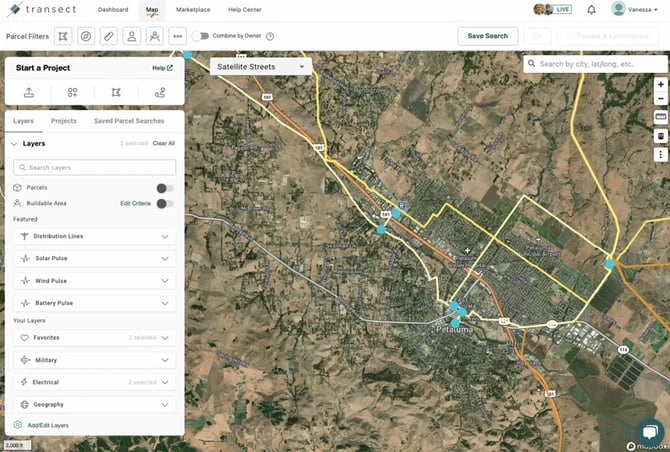
- Navigate to the Map from the top navigation.
- Select Add/Edit Layers at the bottom of the “Layers” modal then click Add/Edit Layers in the lower-right of the pop-out.
- Choose to Browse or Drag & Drop your layer into the modal.
- After choosing your file, you’ll have the option to provide a Name and Description (Optional).
- When finished, select Save.
Your layer will continue processing in the background and you’ll be notified both in the bell icon and via email when it’s available for use.
To upload a custom layer in a Report:
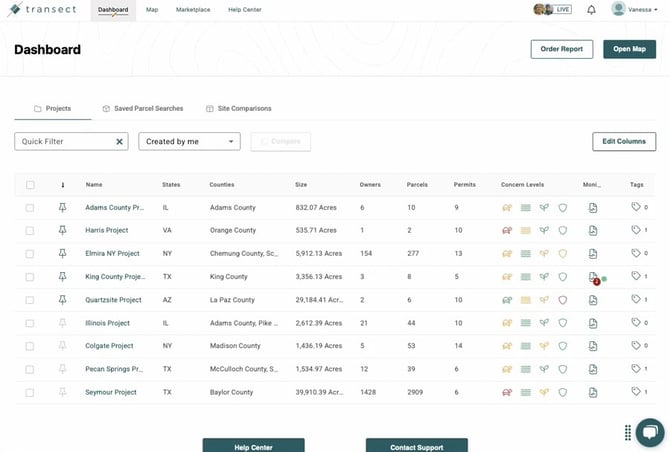
- Open your preferred Transect Report.
- In the Report Map, select +Add Custom Layers.
- Choose to Browse or drag & drop your layer into the modal.
- After choosing your file, you’ll have the option to provide a Name and Description (Optional).
- When finished, select Save.
Your layer will continue processing in the background and you’ll be notified both in the bell icon and via email when it’s available for use.
To upload a custom layer from the Admin page:
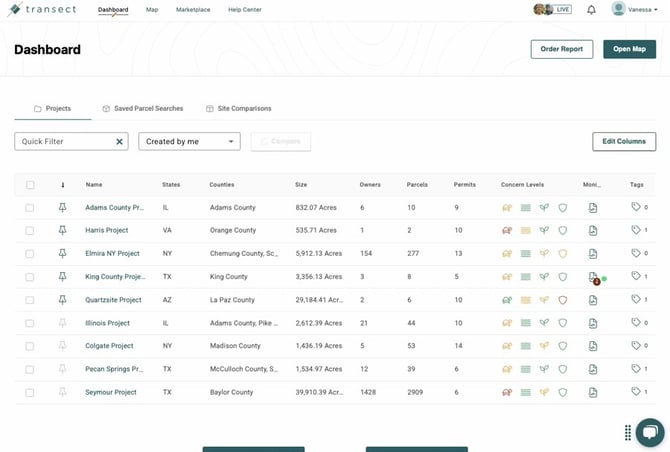
- Select your name in the top right corner and choose Account Settings from the dropdown.
- In the “Add/Edit Layers” field, select Add/Edit Layers.
- Choose to Browse or drag & drop your layer into the modal.
- After choosing your file, you’ll have the option to provide a Name and Description (Optional).
- When finished, select Save.
Your layer will continue processing in the background and you’ll be notified both in the bell icon and via email when it’s available for use.
Modifying your Layer
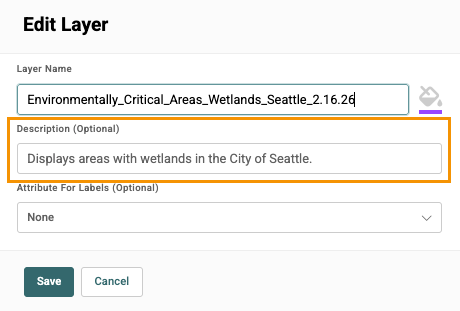
Once your layer has finished uploading, you can modify the label attributes and the layer color. Following any of the steps above, open the custom layer upload page and select the pencil next to the layer name.
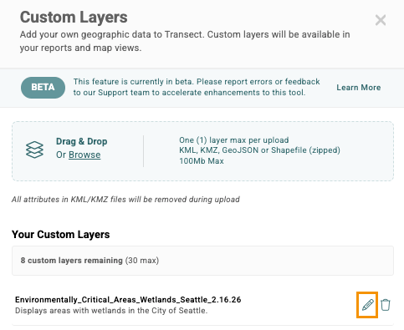
From here, you can modify:
- Description: Adjust the description text associated with the layer.
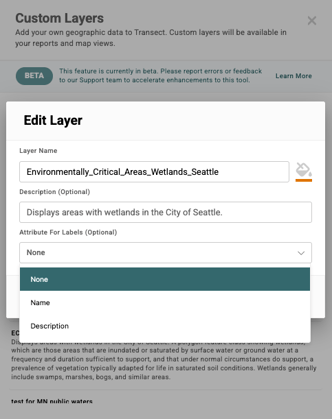
- Attribute Labels: Adjust the attribute that dictates the labels in the Map. These options will vary based on the metadata associated with your uploaded layer.
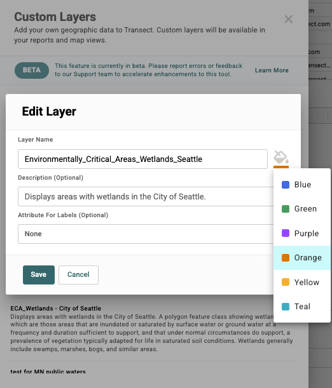
- Layer Color: Choose your preferred layer color—blue, green, purple, orange, yellow or teal. If you need more customized coloring, please contact support@transect.com.
Troubleshooting Custom Data Layer Uploads
To ensure a smooth data upload into Transect, your files must contain simple geometry types. Currently, our system does not support Geometry Collections. A Geometry Collection is a single record that bundles multiple types of data—such as a combination of Polygons, LineStrings, and Points—into one entry.
Before uploading, please ensure your data is categorized into one of these three simple types:
- Point: Individual coordinate locations.
- LineString: Paths, roads, or boundary lines.
- Polygon: Enclosed areas or shapes.
How to Fix Geometry Issues
If your file contains a Geometry Collection, it must be flattened (sometimes referred to as "exploded" or "cast to single parts") before you upload it.
- Extract the Features: Separate the collection so that every individual geometry inside it becomes its own standalone feature.
- Assign Simple Types: Ensure each new feature is saved as a simple Point, LineString, or Polygon.
- Re-upload: Once the geometry is simplified and the collection is removed, your file will be ready for Transect.
To help you get your data ready, here are the specific steps for the most common tools used to "flatten" or "explode" geometry collections:
QGIS
QGIS has a built-in tool specifically for this called Multipart to Singleparts.
- Open your layer in QGIS.
- Go to the Vector menu > Geometry Tools > Multipart to Singleparts.
- Select your input layer and click Run.
- QGIS will create a new "Single Parts" layer where every geometry is its own feature. Export this as your final upload file.
ArcGIS Pro
In ArcGIS, the process is referred to as Exploding or using the Multipart to Singlepart geoprocessing tool.
- Open the Geoprocessing pane and search for Multipart to Singlepart.
- Select your layer as the Input Features.
- Specify your Output Feature Class and click Run.
- If you only need to fix a specific feature, you can also use the Explode tool in the Edit tab.
Here's an example of a file that would process successfully:
{
"type": "Feature",
"geometry": {
"type": "Polygon",
"coordinates": [[[30,10],[40,40],[20,40],[10,20],[30,10]]]
}
}
Here's an example of a file that wouldn't process successfully:
{
"type": "Feature",
"geometry": {
"type": "GeometryCollection",
"geometries": [
{ "type": "Polygon", "coordinates": [...] },
{ "type": "LineString", "coordinates": [...] }
]
}
}
Frequently Asked Questions
- Where can I access my uploaded layer?
Once your layer has finished uploading, you’ll find the layer in the “Your custom layers” category in the Map Layer Manager. It will also be available in the Report Map when the feature intersects or is located within your area of interest. - Can all users at my organization upload custom data layers?
No, only organization admins can upload custom data layers. For more information on permissions, please refer to this article. - How many custom data layers can I upload?
Each organization will have a set amount of layers they can upload, depending on their subscription. Organization Admins can verify how many layers are remaining by opening the Add/Edit Layers modal via one of the options mentioned above. This will provide a count of used and remaining layers.
- Who can view my organization's custom layer?
Layers uploaded by an organization are proprietary to that organization and will only be available for their account and associated users. No other organizations can view that layer. - How can I edit the name or description of my layer after uploading it?
Admins can edit their custom data layer name or description by opening the Add/Edit Layers modal via one of the options above. Next, select the pencil icon to the right of the layer name and add a new name or description. - How do I delete a custom data layer?
Admins can delete their custom data layer by opening the Add/Edit Layers modal via one of the options above. Next, select the trash can to the right of the layer name. A pop-up will appear confirming the deletion, where you’ll select Delete Layer to confirm your selection. - How long does it take for the layer to upload?
It can take up to 1 hour for the layer to upload. - What do I do if my layer upload fails?
If your file type does not meet the upload requirements, you’ll receive an in-app notification with a failure reason. Please refer to this section of the article for troubleshooting information. If you have additional questions, please contact support@transect.com. - How do I change the coloring of my layer?
You can refer to this section of the article for more details. You'll open the Custom Upload tool, select the pencil next to the layer name. Next, select the paint bucket and choose between blue, green, purple, orange, yellow, or teal. If you need more customized coloring, please contact support@transect.com.